Before you start
- A Toki account with onboarding complete.
- Access to the Toki plugin in ChatGPT. This guide does not mean Toki is available in every plugin directory. If it is missing from your account, contact Toki support for access.
- A ChatGPT Work chat on the web with Events available. Workspace settings can restrict this feature. These instructions use the web version.
Allow about ten minutes for setup. Lesson preparation runs separately and can take longer.
The screenshots below are simplified examples made for this guide. They contain no real account data. Button names and layout can differ by ChatGPT version.
Step 01
Save your learning context
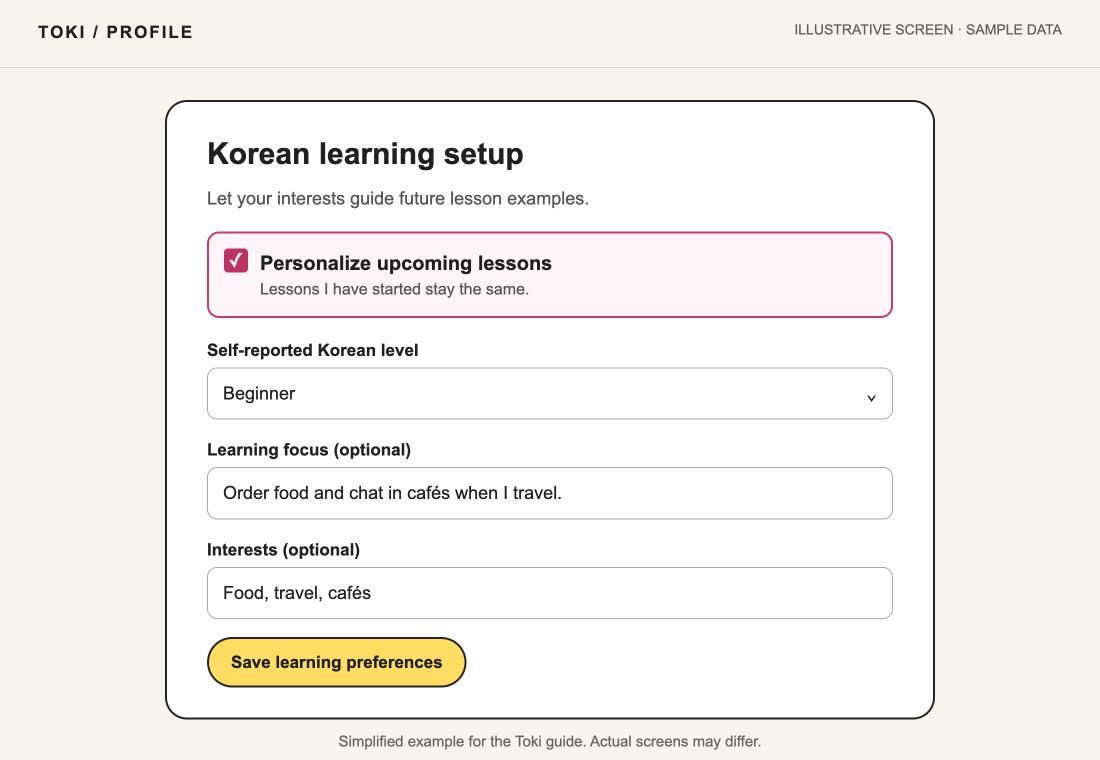
Sign in to Toki and open Profile. Find Korean learning setup. Select your level, then add a purpose, interests, or a learning focus.
For example: “I want to order food and chat in cafés when I travel.” General topics are enough; you do not need to enter private details.
Keep Personalize upcoming lessons selected, then choose Save learning preferences. Wait for the save confirmation.
Step 02
Connect the right account
In ChatGPT, open Plugins or the connected-app settings, then open Toki. Choose Connect. For an existing connection, use Reconnect if you need to renew its permissions.
Continue to Toki and sign in. Check the email on the Connect Toki page before you approve. It must be the account that holds the lessons you want to personalize. Your ChatGPT email and Toki email do not need to match.
Step 03
Allow lesson personalization
Read the account-access details. Keep Allow this application to personalize my upcoming lessons selected. This permission includes lesson update events, preparation, and automatic updates to eligible lessons you have not started.
You do not need to allow changes to preferences, quiz answers, progress, or flashcard ratings for this setup. Choose Allow access and return to ChatGPT.
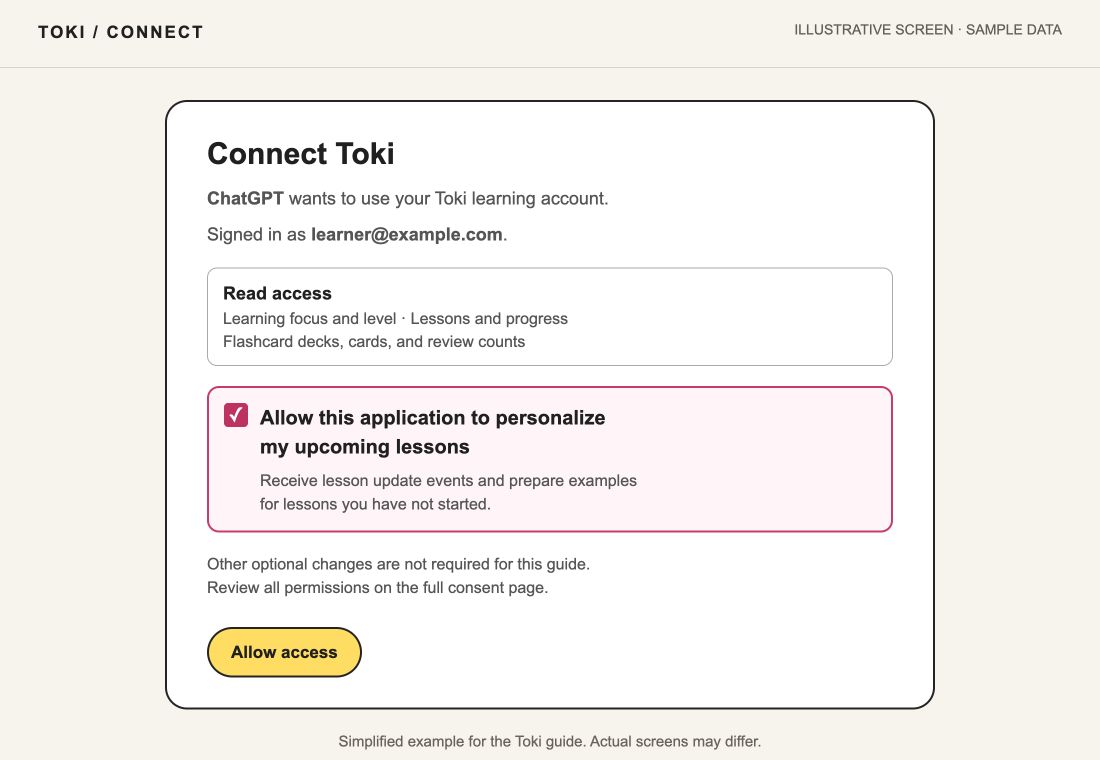
For an older connection, open Toki’s Connected applications. Allow lesson personalization if needed, then reconnect in ChatGPT. Changing the permission in Toki alone may not update an older connection.
Step 04
Check the event is available
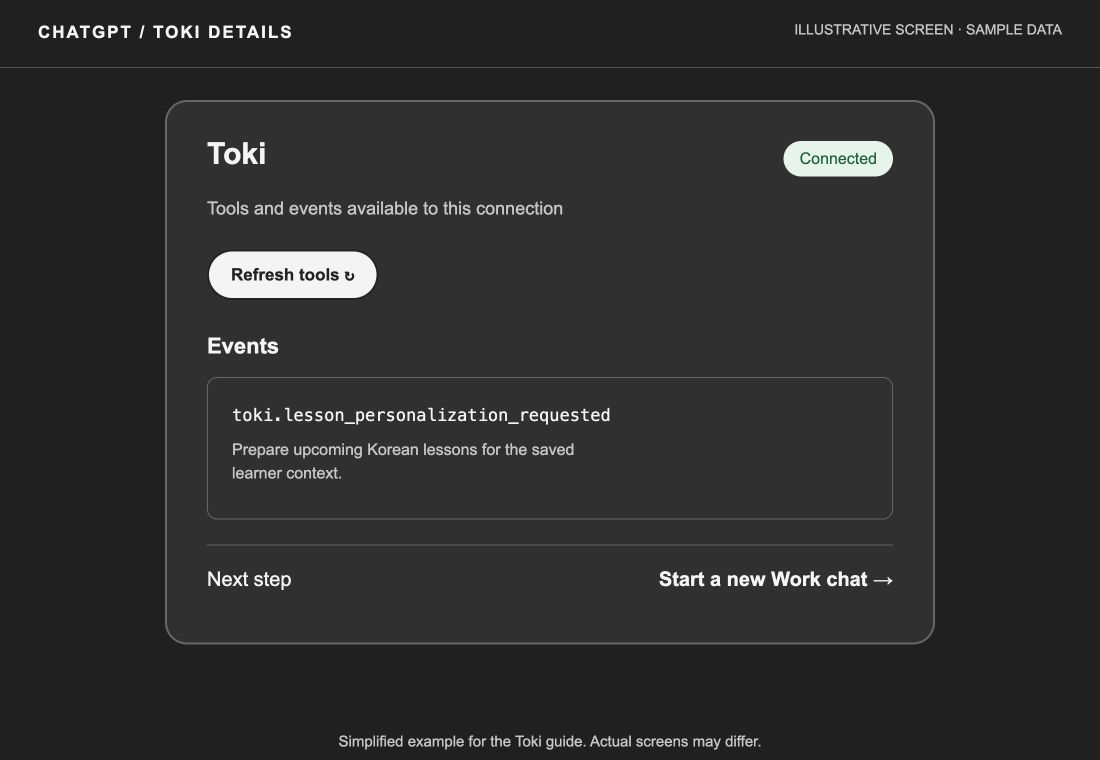
Open Toki’s details in ChatGPT. Look for the event toki.lesson_personalization_requested.
If the event is missing, use Refresh tools or the available rescan control after you reconnect. Wait for the scan to finish. Open the details again, then start a fresh Work chat. If your account has no rescan control, contact Toki support or your workspace administrator.
Step 05
Start monitoring in Work
Start a new chat and select Work. Copy the prompt below and send it. This asks ChatGPT to create one event-triggered monitoring task.
Your setup prompt
Monitor my connected Toki account for toki.lesson_personalization_requested events. When an event arrives, read its saved request. Use my saved interests and purpose to prepare and activate only eligible upcoming lessons that I have not started. Preserve grammar objectives and prerequisites. Skip stale requests and lessons already processed. Do not change my preferences, progress, quiz answers, or flashcard ratings. Use native Events, not scheduled polling. Check for an existing Toki monitoring task first so you do not create a duplicate.
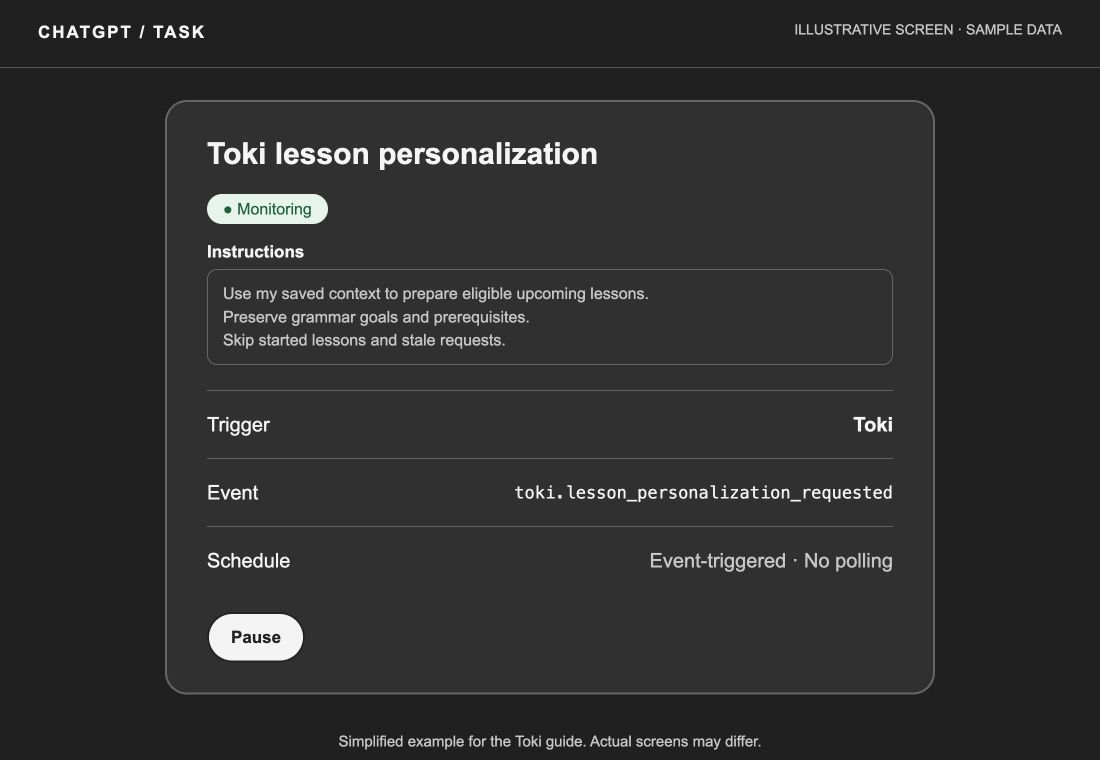
Wait for ChatGPT to confirm that the subscription was created. Open the task card and check that the trigger is Toki, the event is toki.lesson_personalization_requested, and the task shows Monitoring.
Step 06
Check your next lessons
Continue learning in Toki. Saving new context or progressing through lessons can create a request for the next eligible lessons. Connecting can also make current pending work available.
Toki sends an event. ChatGPT reads the saved request, checks that it is current, drafts the lessons, and activates eligible results. Repeated or stale requests must not replace lessons twice.
Check the monitoring task for a result, then open the relevant upcoming lesson in Toki. Confirm that its examples reflect your saved context. A connection confirmation or an event-delivery message is not proof that the lesson was saved. There may be no work to do if no eligible upcoming lesson is available.
Step 07
Pause or disconnect
To pause the ChatGPT task, open it under Scheduled and choose Pause.
To stop automatic personalization in Toki, clear Personalize upcoming lessons in Profile and save. To remove the application’s access, open Connected applications and choose Disconnect. Your saved lessons and learning history remain in Toki.
If something does not work
- ChatGPT cannot find the Toki event
- Check personalization permission, reconnect, refresh the catalog, and use a new Work chat. A standard chat may not offer Events.
- The lessons or progress belong to another account
- Reconnect and check the account shown on Toki’s consent page. Do not approve until it is the intended account.
- The subscription returns an error
- Check Scheduled for an existing Toki task before retrying. If none exists, retry once. If it still fails, contact support with the time and visible error message. Do not send access tokens or passwords.
- Monitoring is active, but the lesson has not changed
- Check the task result and confirm personalization is on. Started lessons are protected. Delivery, preparation, and activation are separate steps; background processing is not instant.
About this guide
Based on Toki’s connection flow and a verified subscription and event delivery on 13 October 2026. It does not promise a preparation time or availability on every ChatGPT account.
For current host requirements, see OpenAI’s MCP Events documentation and plugin connection guide.